Can I Use a Gaming PC on a TV? How to Connect, Configure, and Optimize
Short answer: Yes. A gaming PC can be used on a TV as your main display or as a couch-friendly secondary screen — but there are important details to get right for the best experience. This guide walks you through connections, settings, performance considerations, audio, wireless options, and the best PC picks for TV gaming.
Can I use a gaming PC on a TV?
Yes. Modern TVs accept the same digital video signals as monitors. Most gaming PCs have HDMI or DisplayPort outputs that can be connected directly to a TV. TVs can display 1080p, 4K, and even higher refresh rates depending on the TV’s HDMI version and the GPU’s output. The main differences you’ll notice compared to a monitor are viewing distance, response time (input lag), and TV-specific image processing.
When a TV is a good choice
- Couch gaming or local multiplayer where you want a big screen.
- Console-like experience for casual and single-player sessions.
- Media center use — streaming, movies, and browsing.
When to choose a monitor instead
- Competitive FPS or fast-paced esports where every millisecond of latency matters.
- Desk setups requiring high pixel density at close viewing distances.
Connections: cables, ports, and adapters
How you connect depends on your GPU outputs and your TV inputs. Most modern GPUs have HDMI and DisplayPort; most TVs have multiple HDMI inputs (some support HDMI 2.1 for 4K120/VRR). Here’s what to check and how to connect:
1. Preferred: HDMI 2.1 (for high refresh and 4K)
- If your GPU and TV both support HDMI 2.1, you can get 4K at 120Hz and features like VRR (variable refresh rate) and Auto Low Latency Mode (ALLM).
- Use a certified HDMI 2.1 cable for full bandwidth.
2. HDMI 2.0 or older
- HDMI 2.0 supports 4K at 60Hz and HDR, which is fine for most single-player and casual games.
- For 1080p gaming, HDMI 1.4 is usually fine.
3. DisplayPort to HDMI
- If your GPU only has DisplayPort and your TV only has HDMI, use a quality active DisplayPort-to-HDMI adapter (to preserve high refresh rates and HDR where needed).
4. Multi-PC setups and receivers
- If using an A/V receiver or soundbar, make sure it passes the required HDMI bandwidth (some older receivers cap the signal).
Tip: Label your TV’s HDMI ports (TV menus sometimes show which port supports features like 4K120 or HDR). For PC input, choose the port designated for high-performance gaming where available.
Display settings, resolution, and refresh rate
Once connected, you’ll need to configure Windows and GPU control panels (NVIDIA/AMD/Intel) for resolution, scaling, and refresh rate.
Windows display basics
- Open Settings > System > Display to confirm the TV appears and the resolution matches the TV’s native resolution (usually 1080p or 4K).
- Set scaling if text and UI appear too small at 4K (125% or 150% are common choices for TV viewing distance).
- Click Advanced display settings to confirm refresh rate is set to the highest supported value.
GPU control panel settings
- NVIDIA Control Panel, AMD Radeon Settings, or Intel Graphics Command Center can force resolution, color depth, and custom timings.
- Enable HDR in both Windows and the GPU control panel if your TV supports HDR and you want HDR games and media (note: color, brightness, and tone mapping may require tuning).
Scaling and UI considerations
- At 4K on a 55–65″ TV, UI scaling is often beneficial because you’ll be sitting farther away than at a desk.
- Some games don’t scale UI elements cleanly at 4K; use in-game UI scale settings as needed.
Input lag, game mode, and audio setup
Input lag is the biggest concern when using a TV for gaming. TVs perform image processing (upscaling, noise reduction) that can add latency.
Reduce input lag
- Enable your TV’s “Game Mode” — it disables most image processing and reduces latency.
- Use a direct HDMI connection to the TV (avoid converters if possible).
- Turn off extras like motion smoothing, noise reduction, and unnecessary picture enhancements.
- For competitive play, consider a low-latency TV or a gaming monitor.
Audio options
- Use TV speakers for simplicity, but soundbars or A/V receivers improve audio drastically.
- If using external audio, ensure the HDMI path supports ARC/eARC if you want TV audio routed to a soundbar or receiver.
- Alternatively, connect audio directly from the PC (USB DAC, optical out, or Bluetooth) for better control and reduced syncing problems.
Wireless streaming options
If you prefer the freedom of wireless, there are solid options to stream your PC to a TV with minimal hassle:
Steam Remote Play / Steam Link
- Steam Link (app or dedicated devices) streams games from a local PC to the TV with good performance over a strong Wi-Fi or wired gigabit connection.
Moonlight / NVIDIA GameStream
- Moonlight uses NVIDIA’s GameStream to stream with low latency to supported devices (NVIDIA GPU required on the host).
Windows Wireless Display
- Windows Miracast can mirror a display wirelessly; latency can be higher so it’s better for media and slower-paced games.
Affiliate disclosure & product recommendations
Affiliate disclosure: This article contains affiliate links. If you buy through these links, we may earn a commission at no extra cost to you. Recommendations are based on listed specs and suitability for TV gaming scenarios.
Best gaming PCs for TV use (quick picks)
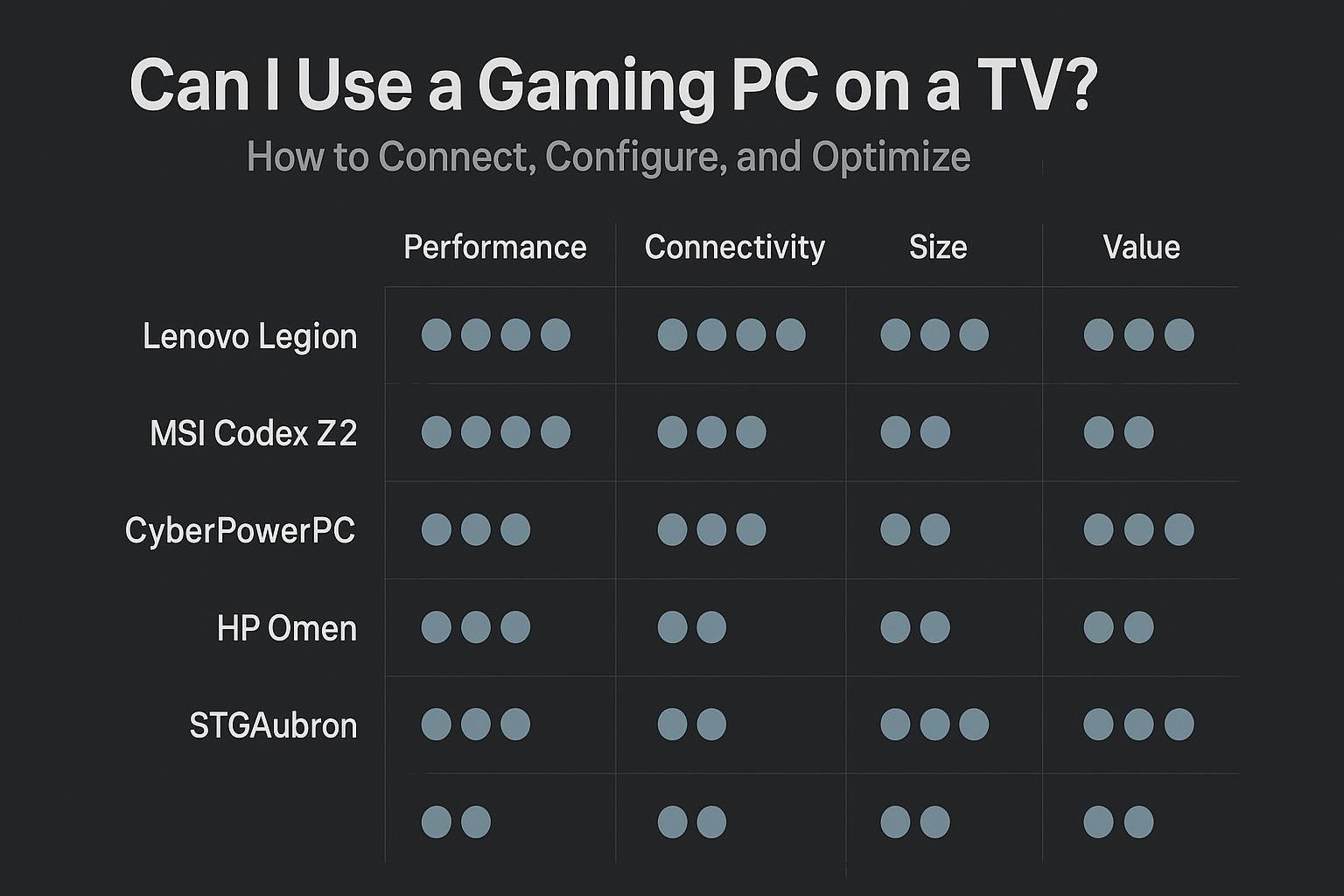
- Lenovo Legion Tower 5i Gaming Desktop Computer — High-end GPU (RTX 5070) and a large RAM+SSD config, great for 4K60/4K120-capable TVs depending on settings.
- msi Codex Z2 Gaming Desktop — Balanced AMD CPU and RTX 5070 for high-quality performance at 1440p and 4K with settings adjustments.
- CyberPowerPC Gamer Master — More budget-friendly option with an RTX 5060 Ti; good for 1080p and 1440p TV gaming and streaming.
Comparison table: quick spec reference
| Model | CPU | GPU | RAM | Storage | Link |
|---|---|---|---|---|---|
| Lenovo Legion Tower 5i | Intel Ultra 7 265F Processor | NVIDIA RTX 5070 12GB GDDR7 | 64 GB DDR5 5600MT/s | 2 TB SSD | Buy on Amazon |
| msi Codex Z2 | AMD R7-8700F | GeForce RTX 5070 | 32GB DDR5 | 2TB m.2 NVMe SSD | Buy on Amazon |
| CyberPowerPC Gamer Master | AMD Ryzen 7 8700F 4.1GHz | GeForce RTX 5060 Ti 8GB | 16GB DDR5 | 1TB PCIe 4.0 SSD | Buy on Amazon |
Which to choose?
- Choose the Lenovo Legion Tower 5i if you want the highest out-of-the-box specs for 4K gaming and headroom for future titles.
- Pick the msi Codex Z2 for a balance of strong CPU and GPU performance at a slightly lower cost than top-tier builds.
- Consider the CyberPowerPC Gamer Master if you’re focused on 1080p/1440p TV gaming or want a budget-friendly streaming PC.
Frequently Asked Questions
1. Can a TV support the same refresh rates as a monitor?
Some modern TVs support high refresh rates (e.g., 120Hz) via HDMI 2.1, which can match monitor capabilities for higher frame-rate gaming. Check your TV’s HDMI version and the specific HDMI input’s supported modes.
2. Will my PC’s GPU automatically detect the TV’s optimal settings?
Usually Windows will detect native resolution and a default refresh rate, but you should verify and adjust settings in Windows Display and your GPU control panel to ensure correct resolution, color depth, HDR, and refresh rate.
3. Is wireless streaming from PC to TV good enough for fast games?
Wireless streaming has improved a lot. Steam Link and Moonlight can be excellent over a strong Wi-Fi 5/6 or wired gigabit connection, but for ultra-competitive play wired HDMI is still the lowest-latency option.
4. How do I fix audio and video sync issues?
Try setting audio to your PC’s output rather than the TV, or enable audio passthrough features on your receiver with the correct HDMI settings (ARC/eARC). Also ensure TV firmware and GPU drivers are up to date.
5. Do I need to change any GPU driver settings for TV HDR?
Enable HDR in Windows (Settings > System > Display) and then toggle HDR settings in your GPU control panel. You may need to adjust brightness and color settings on the TV to get the best HDR results.
6. Will using a TV damage my GPU or PC?
No. Using a TV as a display does not harm your GPU or PC. Just ensure proper ventilation and avoid forcing unsupported resolutions/refresh rates that the TV can’t handle.
Conclusion
Using a gaming PC on a TV is entirely practical and often very enjoyable for couch gaming, local multiplayer, and media. For the best experience: use the correct HDMI version, enable Game Mode on the TV, tune display and audio settings in Windows and your GPU panel, and consider wired connections for the lowest latency. If you want recommended hardware, the Lenovo Legion Tower 5i, msi Codex Z2, and CyberPowerPC Gamer Master are solid choices depending on your budget and target resolution. Try streaming solutions like Steam Link or Moonlight if you prefer a wireless setup.
External reference: For details about HDMI capabilities and versions, you can visit HDMI.org.
Visual Buying Guide