How Do Gaming PCs Work: Components, Performance, and Buying Guide
Gaming PCs combine specific hardware and software to turn game code into moving images, sound, and responsive controls. This guide explains the core components, how they interact, how that affects frame rates and visuals, and what to look for when buying or upgrading a system.
Table of Contents
- Gaming PC Basics: The Big Picture
- Core Components and What They Do
- How Games Are Processed: From Code to Frame
- Common Bottlenecks and How to Fix Them
- Buying Advice and Upgrade Paths
- Product Recommendations (with affiliate links)
- Quick Comparison Table
- FAQs
- Conclusion
Gaming PC Basics: The Big Picture
At its core, a gaming PC runs an operating system and specialized drivers that let games use the machine’s hardware. When you launch a game, the CPU, GPU, memory, and storage cooperate to load assets, simulate physics, run AI, and render frames. The smoothness and fidelity you experience depend on the balance and capability of those parts.
Core Components and What They Do
CPU (Central Processing Unit)
The CPU handles general-purpose tasks: game logic, AI, physics calculations, and feeding data to the GPU. Many modern games use multiple CPU cores, but some tasks are still single-thread sensitive—so a CPU with strong single-core performance and several efficient cores is ideal.
GPU (Graphics Processing Unit)
The GPU renders images, handles shaders, lighting, and often ray tracing. It’s the component most tied to frame rate and graphical settings. Higher VRAM and more processing units let you run higher resolutions and detail levels.
RAM (System Memory)
RAM stores active game data for quick access. Insufficient RAM forces the system to page to storage, causing stutters. For modern gaming, 16GB is a practical baseline; 32GB benefits heavy multitasking, streaming, or very demanding titles.
Storage (SSD/HDD)
Solid-state drives (SSDs) drastically reduce load times and can decrease in-game streaming stutter when open-world assets load. NVMe PCIe SSDs are faster than SATA SSDs and provide the best experience for modern games.
Motherboard
The motherboard connects components and determines expandability—available M.2 slots, PCIe lanes, USB ports, and overclocking support.
Power Supply Unit (PSU)
PSUs supply stable power. A high-quality PSU with the correct wattage and good efficiency protects components and allows headroom for upgrades.
Cooling and Case
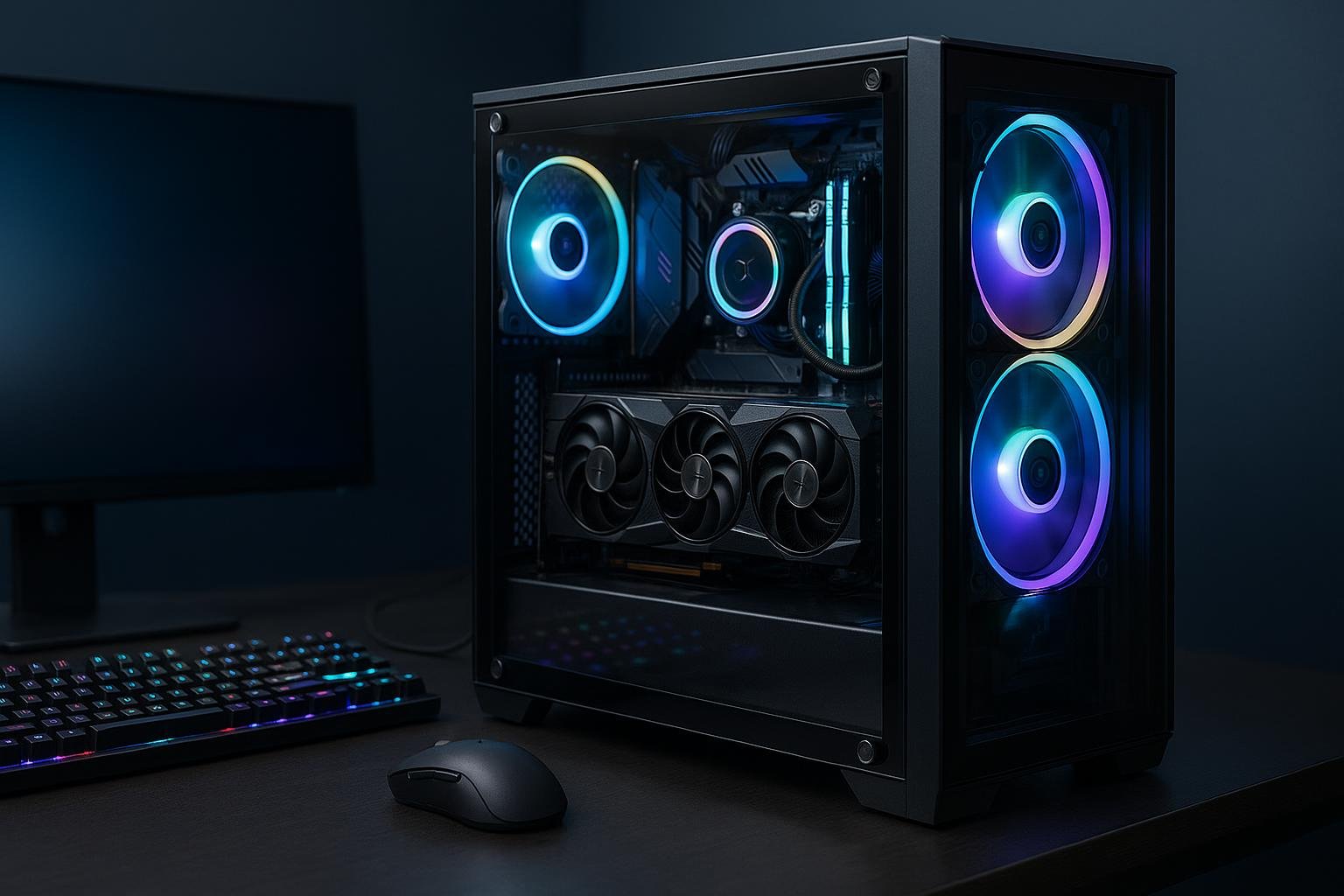
Effective cooling maintains performance under load. CPUs and GPUs throttle when hot, reducing frame rates. Cases impact airflow and compatibility for larger GPUs or additional coolers.
Operating System and Drivers
Windows is the most common gaming OS, with manufacturer drivers (NVIDIA/AMD) providing optimizations. Keep drivers and game patches up to date for best compatibility and performance.
How Games Are Processed: From Code to Frame
1. Game Launch and Asset Loading
- Game files are read from storage and loaded into RAM.
- Textures, models, and audio are streamed as needed.
2. Game Loop and Simulation
The game loop runs continuously: input is read, game state updates (physics, AI), and rendering commands are sent to the GPU.
3. Rendering Pipeline
- CPU prepares draw calls and sends them to the GPU.
- GPU processes geometry, applies shaders, textures, and lighting, then outputs an image buffer.
- The image is sent to your display at the monitor’s refresh rate (e.g., 60Hz, 144Hz).
4. Frame Delivery and Sync
Display synchronization technologies (V-Sync, G-Sync, FreeSync) help prevent tearing by matching GPU output with the monitor’s refresh rate. Lower latency is important for responsiveness in competitive titles.
Common Bottlenecks and How to Fix Them
GPU Bottleneck
When the GPU is maxed and the CPU has headroom, lowering resolution or graphical settings reduces GPU load. Upgrading to a faster GPU is the most direct solution.
CPU Bottleneck
If CPU usage is consistently at or near 100% while GPU usage is low, the CPU is limiting performance. Solutions: lower CPU-heavy settings (shadow distance, crowd density), enable frame rate caps, or upgrade the CPU.
Memory and Storage Issues
- Low RAM: Add more RAM to avoid paging-related stutters.
- Slow storage: Move the game to an SSD or NVMe drive to reduce load and streaming stutter.
Thermal Throttling
High temperatures force parts to reduce clock speeds. Improve case airflow, clean dust, reapply thermal paste, or upgrade cooling to maintain consistent performance.
Buying Advice and Upgrade Paths
Decide Your Priorities
- Competitive esports: prioritize high frame rates with a strong GPU/CPU and a 144Hz+ monitor.
- Max visual fidelity: favor a powerful GPU, higher VRAM, and plenty of fast storage.
- Streaming and multitasking: prioritize CPU cores/threads and 32GB RAM.
Prebuilt vs. Custom Build
Prebuilt systems save time and often include warranty support; custom builds offer tailor-made balance and future expandability. If you want a ready-to-play option with good balance, reputable prebuilts are a safe choice.
Upgrade Path Strategy
- Start with a balanced GPU and CPU pairing to avoid immediate bottlenecks.
- Choose a motherboard with support for faster RAM and extra M.2 slots to extend lifespan.
- Invest in an SSD first if you still use HDDs—it’s one of the most noticeable upgrades.
Affiliate Disclosure
Some links below are affiliate links. If you buy through them I may earn a commission at no extra cost to you. I only recommend products I consider useful for gaming PC buyers.
Product Recommendations
Below are a few solid prebuilt gaming systems across different needs. Each is linked to the exact product page for quick checks.
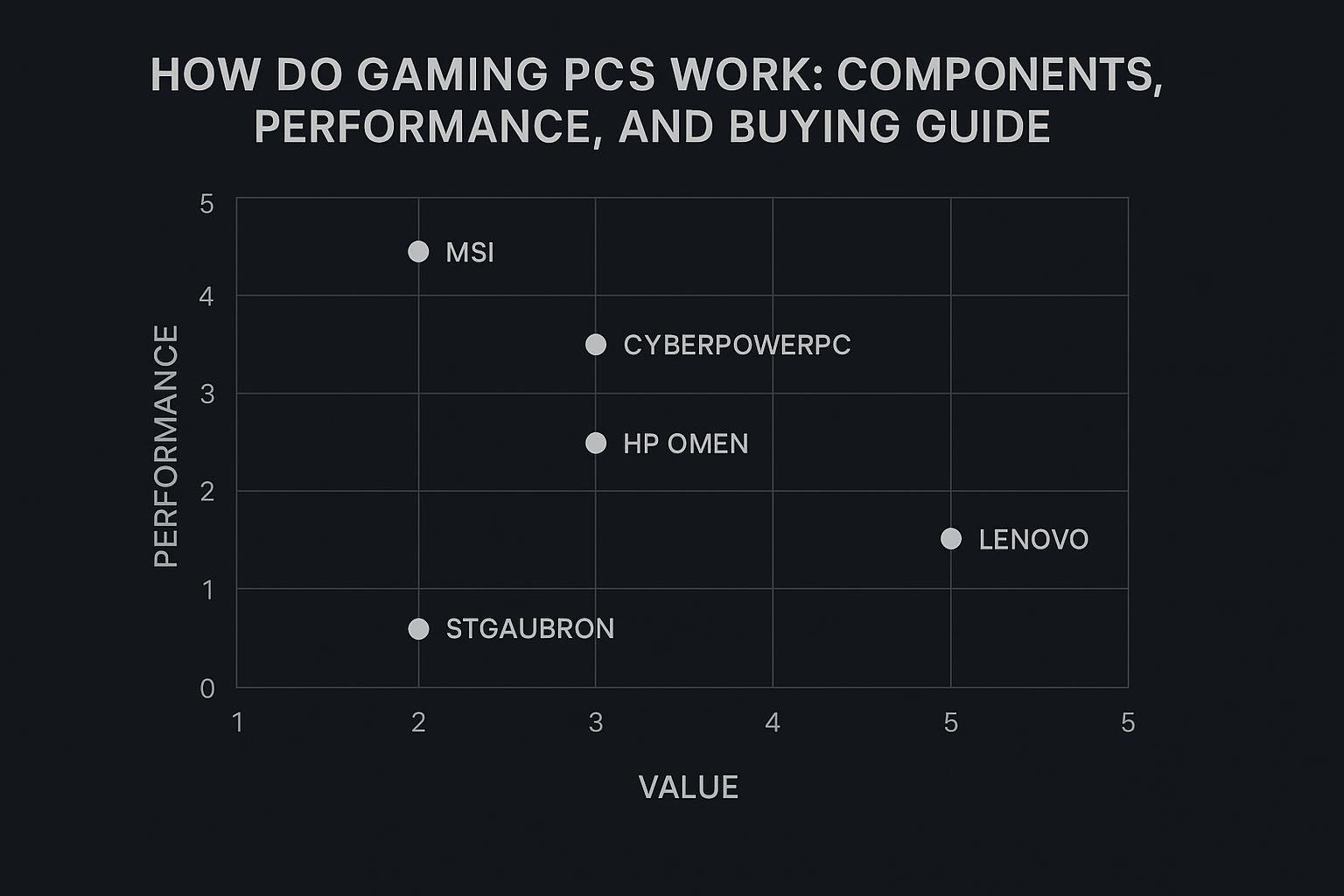
- MSI Codex Z2 Gaming Desktop: AMD R7-8700F, GeForce RTX 5070, 32GB DDR5, 2TB NVMe SSD — Great balance for high-detail 1440p gaming and streaming.
- CyberPowerPC Gamer Master Gaming PC: AMD Ryzen 7 8700F, GeForce RTX 5060 Ti, 16GB DDR5, 1TB PCIe 4.0 SSD — Value-oriented option for strong 1080p/1440p performance.
- HP OMEN 17.3 RTX 5070 AI Gaming Laptop: Ryzen AI 9 365, 32GB DDR5, 1TB SSD — Portable high-performance laptop for both gaming and content work.
- Lenovo Legion Tower 5i Gen 10: Intel Ultra 7 265F, RTX 5070, 32GB DDR5, 2TB PCIe SSD — Powerful desktop for long-term gaming and multitasking.
Quick Comparison Table
| Product | CPU | GPU | RAM | Storage | Link |
|---|---|---|---|---|---|
| MSI Codex Z2 | AMD R7-8700F | GeForce RTX 5070 | 32GB DDR5 | 2TB M.2 NVMe SSD | View on Amazon |
| CyberPowerPC Gamer Master | AMD Ryzen 7 8700F | GeForce RTX 5060 Ti | 16GB DDR5 | 1TB PCIe 4.0 SSD | View on Amazon |
| HP OMEN 17.3 (Laptop) | AMD Ryzen AI 9 365 | RTX 5070 | 32GB DDR5 | 1TB SSD | View on Amazon |
| Lenovo Legion Tower 5i | Intel Ultra 7 265F | RTX 5070 | 32GB DDR5 | 2TB PCIe SSD | View on Amazon |
Frequently Asked Questions
1. How much RAM do I need for gaming?
For most modern games, 16GB is the practical baseline. If you stream, run multiple apps, or work with large files while gaming, 32GB provides better headroom.
2. Is a powerful GPU more important than a powerful CPU?
It depends on your goals. For higher resolutions and visual settings, the GPU has a larger impact. For CPU-intensive games or high frame-rate competitive play, a stronger CPU matters too. Balanced systems avoid one component limiting the other.
3. Will an SSD improve gaming performance?
Yes. SSDs reduce load times and improve asset streaming, which can reduce stutters in open-world titles. NVMe drives are faster than SATA SSDs and offer the best experience.
4. How can I tell if my PC is thermal throttling?
Symptoms include sudden drops in frame rates under load and high temperature readings. Use monitoring tools to check CPU/GPU temps; if they’re near or above the reported thermal limits, improve cooling or reduce overclock settings.
5. Should I buy a prebuilt gaming PC or build my own?
Prebuilts are convenient and offer warranty support; building your own can save money and offer tailored parts. If you value convenience and warranty-backed support, a reputable prebuilt is a solid option.
6. What is the best way to extend the life of a gaming PC?
Keep drivers updated, maintain good cooling, add more RAM or an SSD if needed, and consider GPU or CPU upgrades when performance no longer meets your needs. Choosing a case and motherboard with expansion options helps future upgrades.
Conclusion
Gaming PCs work by coordinating the CPU, GPU, RAM, storage, and supporting components to convert game code into images and input into actions. Understanding how each part contributes helps you make smarter buying and upgrade choices. If you want a ready-to-play system that balances performance and convenience, the recommendations above are a good starting point. For long-term value, focus on a balanced build with room to upgrade.
External references for further reading: Tom’s Hardware, PC Gamer.
Visual Buying Guide