How to Gaming PC: Build, Buy, and Optimize Your Gaming PC (Practical Guide)
Whether you want to build a custom machine or buy a prebuilt one, this guide explains how to gaming PC step by step. You’ll find clear buying criteria, a safe build checklist, optimization tips, a product recommendation section with affiliate options, and answers to common FAQs.
Why Build or Buy?
Deciding how to gaming PC starts with a choice: build a custom rig or buy a prebuilt system. Each option has pros and cons.
Build: Pros and Cons
- Pros: Full control over component selection, better upgrade path, potential cost savings for similar performance.
- Cons: Time and learning curve, potential troubleshooting, warranty split across parts.
Buy Prebuilt: Pros and Cons
- Pros: Fast setup, single-vendor warranty, often includes tested cooling and cable management.
- Cons: Less transparent parts list sometimes, markups, limited customization out of the box.
What You Need (Parts Checklist)
Whether building or buying, these are the core components you need to consider when learning how to gaming PC:
Essential Components
- CPU: Determines overall system speed and gaming CPU-bound performance.
- GPU: Most important for gaming frame rates and resolution.
- Motherboard: Compatibility hub for CPU, RAM, and storage.
- RAM: 16GB is baseline for modern gaming; 32GB for streaming or heavy multitasking.
- Storage: NVMe SSD for fast OS and game load times; 1TB+ recommended for a library of modern titles.
- Power Supply (PSU): Quality unit with enough wattage and headroom; modular is easier for cable management.
- Case & Cooling: Good airflow and enough space for your GPU and cooler.
- Peripherals: Monitor, keyboard, mouse, and headset—don’t ignore their impact on experience.
Step-by-Step Build Checklist
This section is a practical checklist for assembling a PC. If you are buying prebuilt, skip to optimization and maintenance sections.
Before You Start
- Work on a non-conductive surface with good lighting.
- Have a magnetic screwdriver, cable ties, and thermal paste (if not pre-applied).
- Ground yourself by touching a metal surface periodically to avoid static discharge.
Assembly Steps
- Install the CPU onto the motherboard socket following the orientation marks.
- Install CPU cooler and apply thermal paste if needed (thin, even layer).
- Install RAM into the correct DIMM slots—check the motherboard manual for dual-channel slots.
- Mount the motherboard into the case using standoffs; secure with screws.
- Install the power supply and route primary cables (24-pin ATX, CPU 8-pin) roughly in place.
- Install storage (M.2 NVMe in the M.2 slot or SATA SSD/HDD in bays).
- Install GPU into the primary PCIe x16 slot and secure it to the case; connect the necessary PCIe power cables from the PSU.
- Connect case front-panel connectors (power switch, USB, audio) to the motherboard—refer to manual.
- Perform cable management: tie off loose cables for airflow and aesthetics.
- Run a first-boot test with monitor and keyboard connected. Enter BIOS/UEFI to verify component recognition.
BIOS and First Boot
- Confirm CPU, RAM, and storage are detected.
- Set XMP/DOCP profile to enable rated RAM speed (if using DDR5/DDR4 high-speed kits).
- Ensure boot order points to your installation media if installing OS fresh.
Optimize Performance
Once your system runs, optimize both hardware and software for the best gaming experience.
Drivers and Firmware
- Install the latest GPU drivers from the manufacturer (NVIDIA/AMD) and any chipset drivers from the motherboard vendor.
- Update BIOS only if needed for compatibility or fixes; follow the motherboard guide.
Windows and In-Game Settings
- Keep Windows updated, but avoid insider or beta channels if you want stability.
- Disable unnecessary background startup programs using Task Manager.
- In-game, prioritize frame rate vs visual quality depending on monitor refresh rate and GPU capability. Use built-in presets as a starting point.
Thermals and Noise
- Ensure positive airflow (intake fans slightly stronger than exhaust) to reduce dust buildup and improve thermals.
- Replace stock CPU cooler if temperatures are high under load—an aftermarket air or AIO cooler helps.
- Clean dust filters and fans every 3–6 months depending on environment.
Overclocking and Fine Tuning
Overclocking can boost performance but requires careful testing:
- Adjust CPU and GPU clocks gradually and test stability with stress tests and games.
- Monitor temperatures closely—keep CPU under safe limits advised by the CPU maker.
Maintenance and Troubleshooting
Regular Maintenance
- Update drivers quarterly and BIOS when necessary.
- Clean dust from fans, radiators, and filters every few months.
- Monitor disk health and free space—keep an eye on SSD capacity and performance.
Common Troubleshooting Steps
- No POST: Reseat RAM/GPU, check PSU connections, and confirm motherboard front-panel connector wiring.
- Random crashes: Check RAM with memtest, verify temperatures, and test PSU stability.
- Low FPS: Ensure GPU driver is correct, check background tasks, and validate in-game settings and resolution scaling.
Product Recommendations (Affiliate)
Affiliate disclosure: Some links below are affiliate links. If you buy through these links I may earn a commission at no extra cost to you. I only recommend products I trust and that match the needs explained in this guide.
Here are solid prebuilt systems that cover common needs: value builds, mainstream performance, and high-end options. All links open on Amazon.
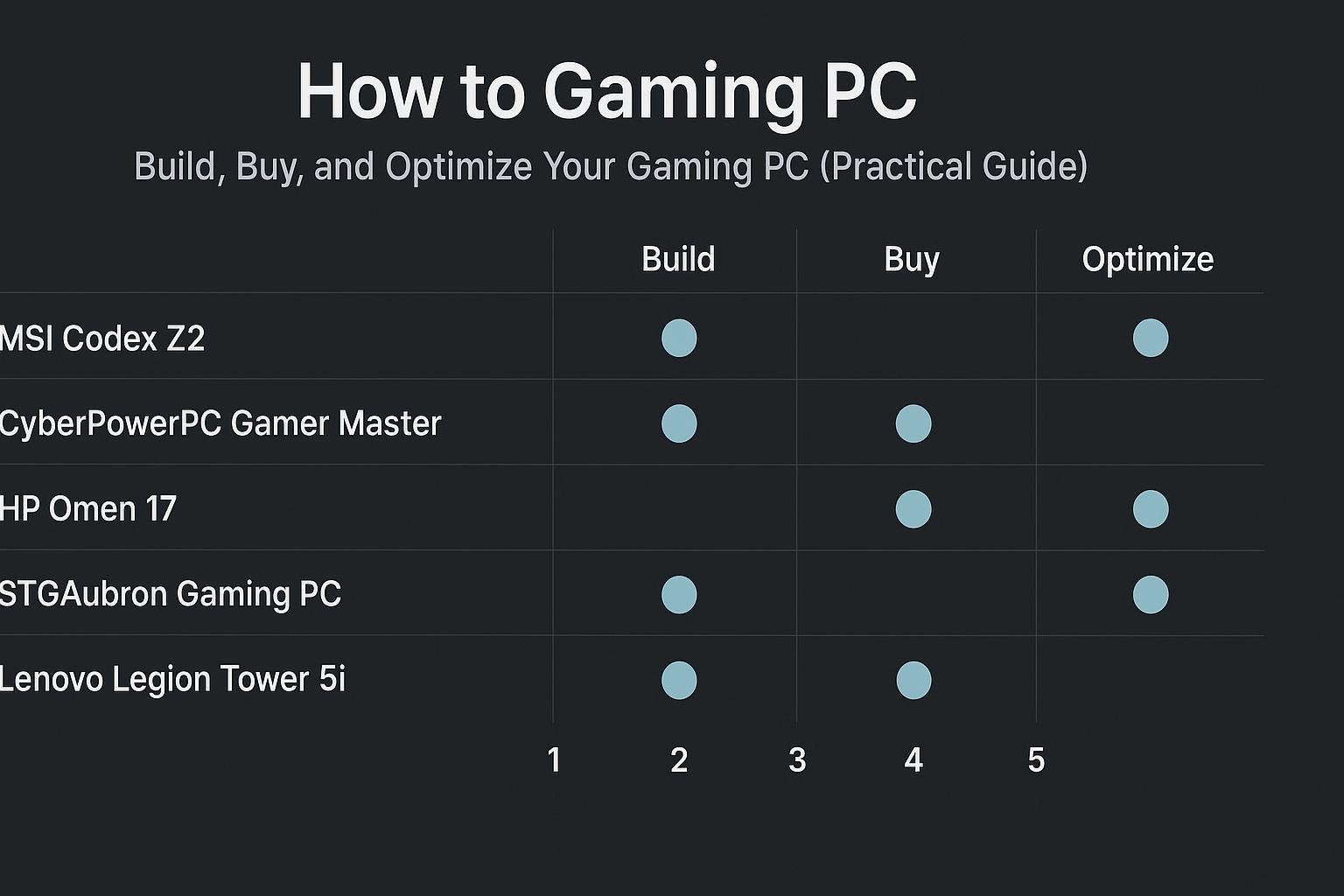
- msi Codex Z2 Gaming Desktop: AMD R7-8700F, GeForce RTX 5070, 32GB DDR5, 2TB m.2 NVMe SSD, USB Type-C, VR-Ready, Windows 11 Home — Great balance of CPU and GPU for 1440p gaming and streaming.
- CyberPowerPC Gamer Master Gaming PC, AMD Ryzen 7 8700F, GeForce RTX 5060 Ti, 16GB DDR5, 1TB PCIe 4.0 SSD — Strong mainstream performer for 1080p and 1440p gaming.
- HP OMEN 17.3 RTX 5070 AI Gaming Laptop, 17.3″ FHD 144Hz, AMD Ryzen AI 9 365, 32GB DDR5 RAM, 1TB SSD — Portable high-refresh experience if you need a laptop instead of a desktop.
- Lenovo Legion Tower 5i Gen 10 Gaming Desktop 2026, Intel Ultra 7 265F, NVIDIA GeForce RTX 5070, 32GB DDR5, 2TB PCIe SSD — High-performance desktop for future-proofing and heavy multitasking.
Comparison Table
| Product | Key Specs (from listing) | Best For | Buy Link |
|---|---|---|---|
| msi Codex Z2 | AMD R7-8700F, GeForce RTX 5070, 32GB DDR5, 2TB NVMe, Windows 11 Home | 1440p gaming, streaming | Buy on Amazon |
| CyberPowerPC Gamer Master | AMD Ryzen 7 8700F, GeForce RTX 5060 Ti, 16GB DDR5, 1TB PCIe 4.0 SSD | Value/mainstream gaming | Buy on Amazon |
| HP OMEN 17.3 (Laptop) | AMD Ryzen AI 9 365, RTX 5070, 32GB DDR5, 1TB SSD, 17.3″ 144Hz | Portable high-refresh gaming | Buy on Amazon |
| Lenovo Legion Tower 5i | Intel Ultra 7 265F, RTX 5070, 32GB DDR5, 2TB PCIe SSD | High-end desktop, multitasking | Buy on Amazon |
Conclusion
Learning how to gaming PC boils down to choosing the right approach (build vs buy), getting the key components aligned to your goals (resolution, refresh rate, streaming), and maintaining and optimizing the system over time. If you value customization and long-term upgrades, building gives you the most control. If you want a quick, warranty-backed solution, a prebuilt like the systems listed above can be an excellent choice.
Frequently Asked Questions
1. What is the single most important component for gaming?
The GPU is the single most important component for gaming performance. It determines frame rates, rendering quality, and how well you can play at higher resolutions.
2. How much RAM do I need for gaming?
For modern gaming, 16GB is the practical baseline. 32GB is recommended if you plan to stream, run virtual machines, or keep many background applications open.
3. Can I upgrade a prebuilt PC later?
Often yes—most prebuilt desktops allow upgrades for RAM, storage, GPU, and sometimes the PSU. Check the vendor’s documentation for warranty implications and internal layout limitations.
4. Is an SSD necessary for gaming?
Yes. An NVMe SSD dramatically reduces game load times and improves system responsiveness compared to a traditional hard drive.
5. Do I need to overclock my PC to get good performance?
No. Modern CPUs and GPUs deliver strong performance at stock settings. Overclocking can add performance but requires careful testing and thermal considerations.
6. How often should I update drivers and clean my PC?
Update GPU drivers every few weeks for the latest game optimizations and clean dust from fans/filters every 3–6 months depending on your environment.
If you’re ready to buy a ready-to-go system, consider the recommended prebuilt options above. If you want a tailored parts list for a custom build at a specific budget or target resolution, tell me your budget and preferred games and I’ll provide a tailored component list.
Visual Buying Guide